Drawing register software for UK steel fabricatorsYour office drawings. Automatically up to date on site.

Drop drawings into the office hub. Drawing Inbox reads and files them, manages revisions and updates your team’s site apps.

Real jobs, real sheets, real stamp. Every claim on this page was run through the software before it was written.

OFFICE PC → SITE PHONES

6 / 6Site phones receive the current set — and, if switched on, the alerts.

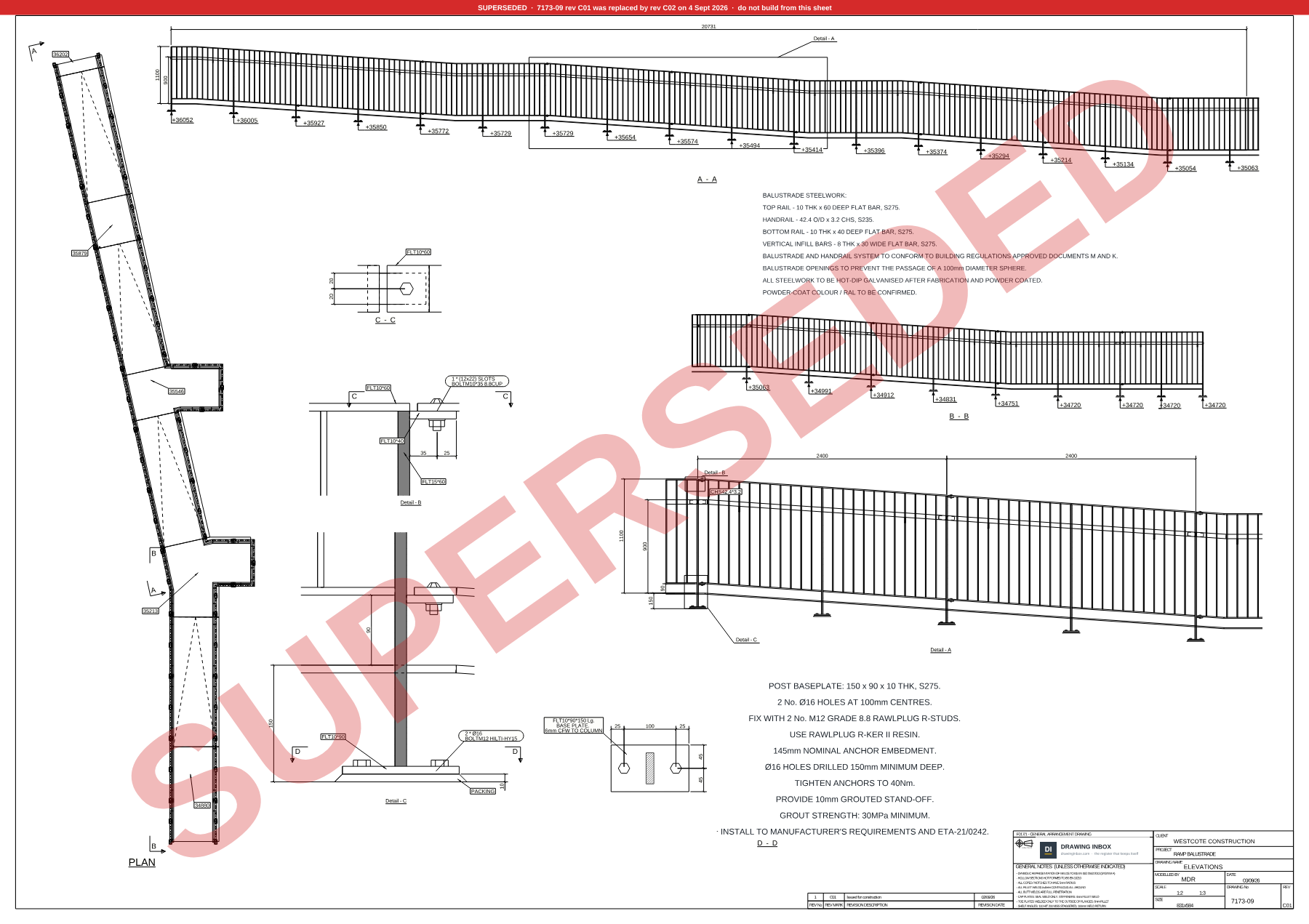
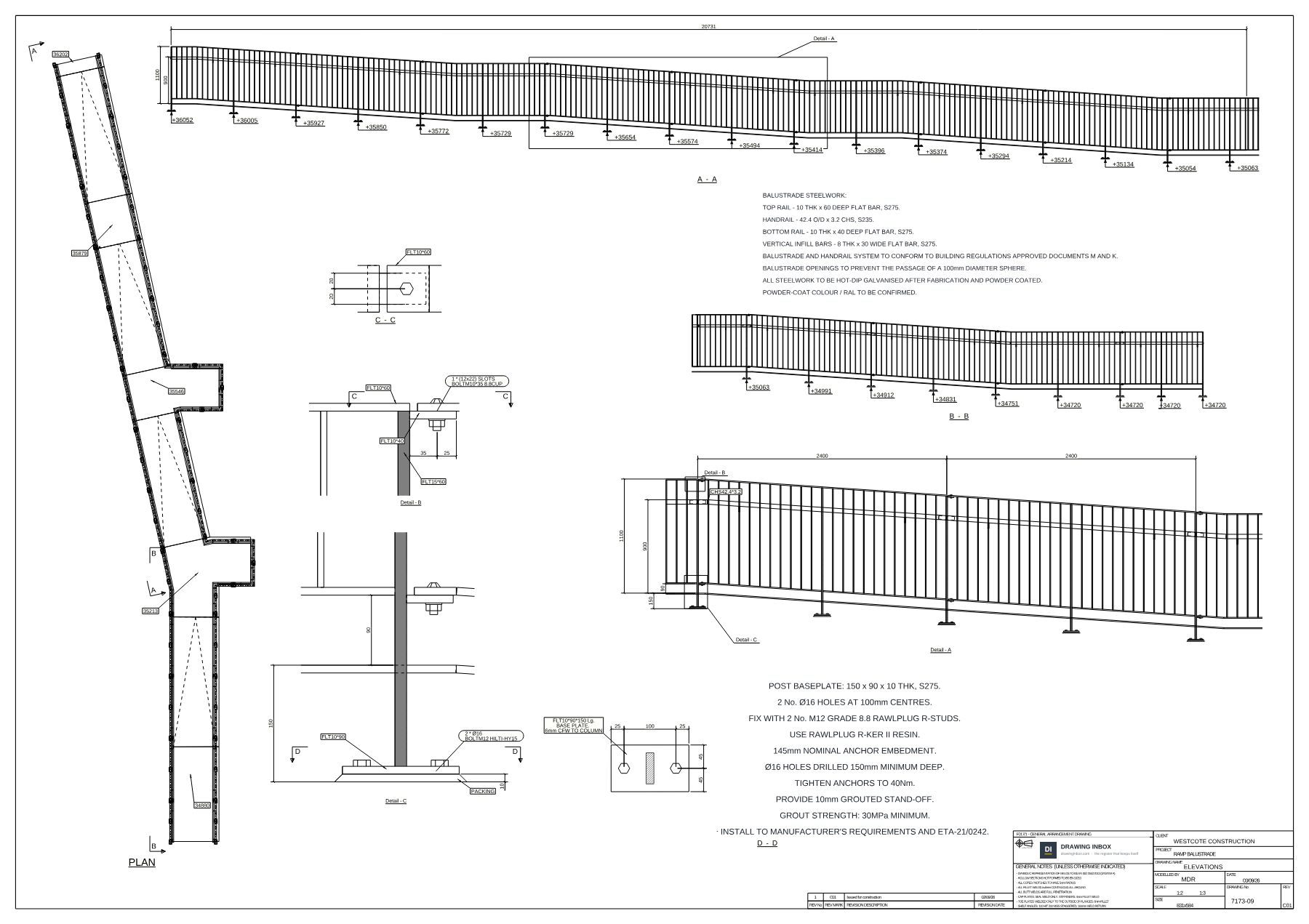
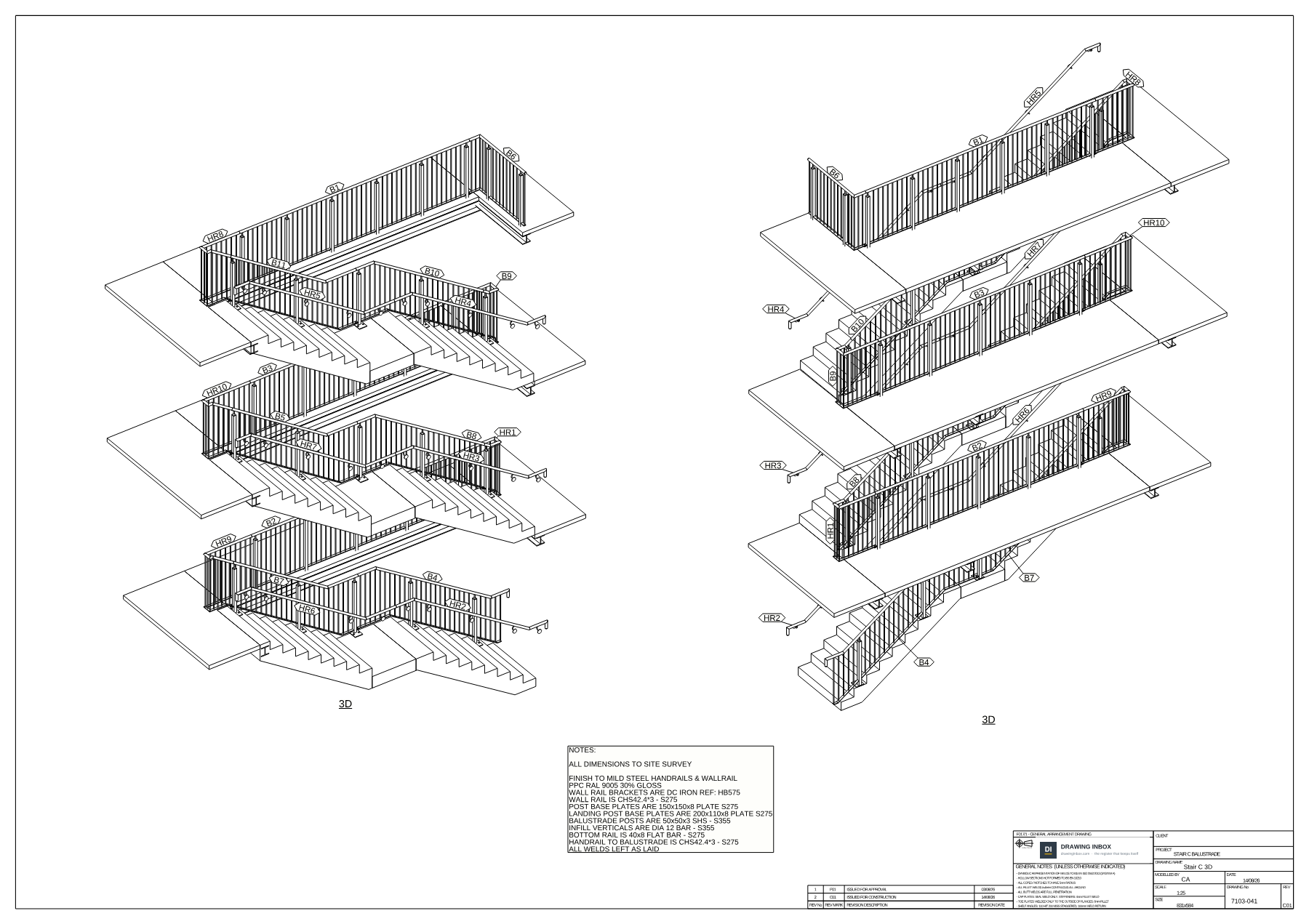
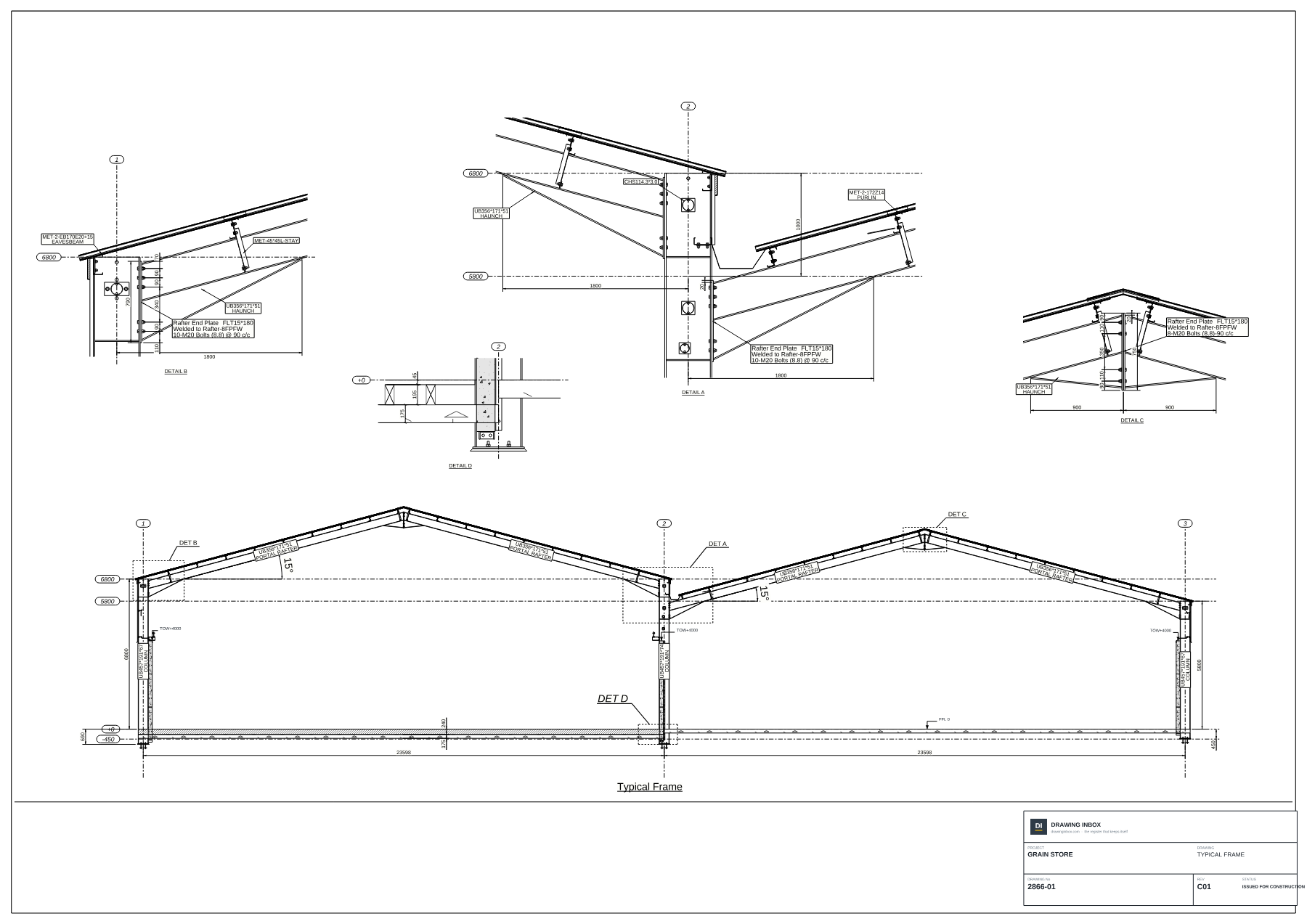
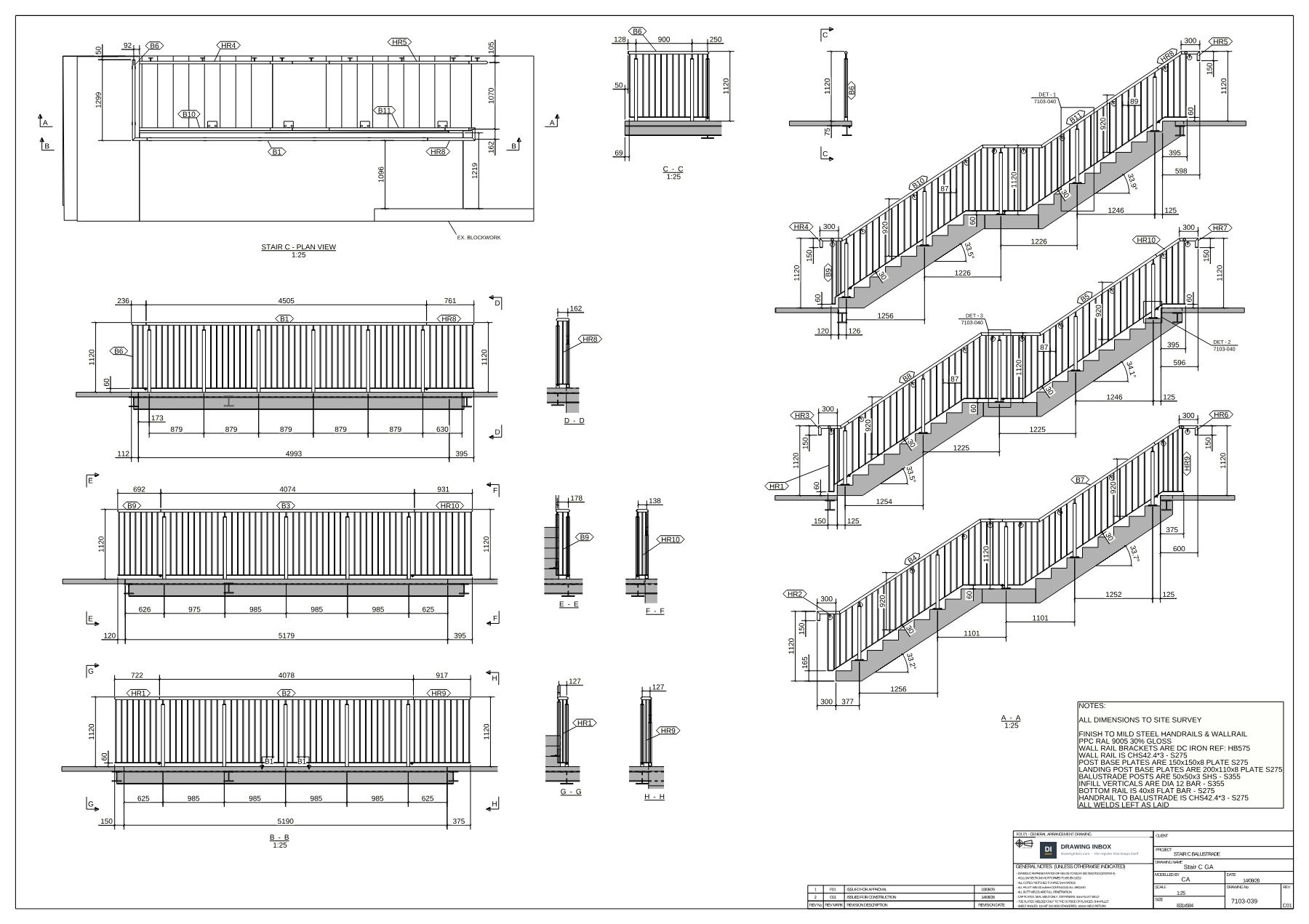
A two-page PDF named scan (1).pdf is dropped onto the office PC. Drawing Inbox reads the number, revision, title and job off each page’s title block. Page 7103-039 belongs to no job yet, so job 7103 is created and it is filed there. Page 7173-09 at revision C02 revises the C01 already on job 7173: C02 becomes current, and C01 goes into history, served with a red SUPERSEDED stamp whenever it is opened or exported. Your team's site apps receive both on their own, and — if switched on — two alerts: New job: 7103, and Drawings updated — 7173, 7173-09 is now rev C02. Alerts are optional: switched off, a phone still updates.

Built in a UK detailing officeBy people who issue these drawings
Hosted in the EUHelsinki, backed up nightly
No per-user seatsYour site team costs nothing
£49 per company, per monthPlus VAT
Cancel monthlyNo contract, no notice period
The film · a minute and a half

The whole thing, start to finish

A drawing is dropped in and filed. Site gets it on the phone. A revision arrives, the old sheet is automatically stamped superseded, and every phone is up to date. Real screens, real sheets.

No voice-over. Everything is on screen.

See how it works · you do the filing

File a real issue yourself

Five files just landed by email. Drag each one into Drawing Inbox and watch it read the sheet and file it — drop C02 and C01 gets stamped.

On the office PC · just in by email

Drag a file into the box — or tap one. It reads the sheet and files it, like the real thing.

Drop drawings, a combined PDF pack, the DWG and IFC for 7173Every page is read off its own title block. Clear pages file themselves.
7173 · RAMP BALUSTRADE · WESTCOTE CONSTRUCTION
DrawingTitleRevFiles
The register builds itself as files land…
What happens to C01
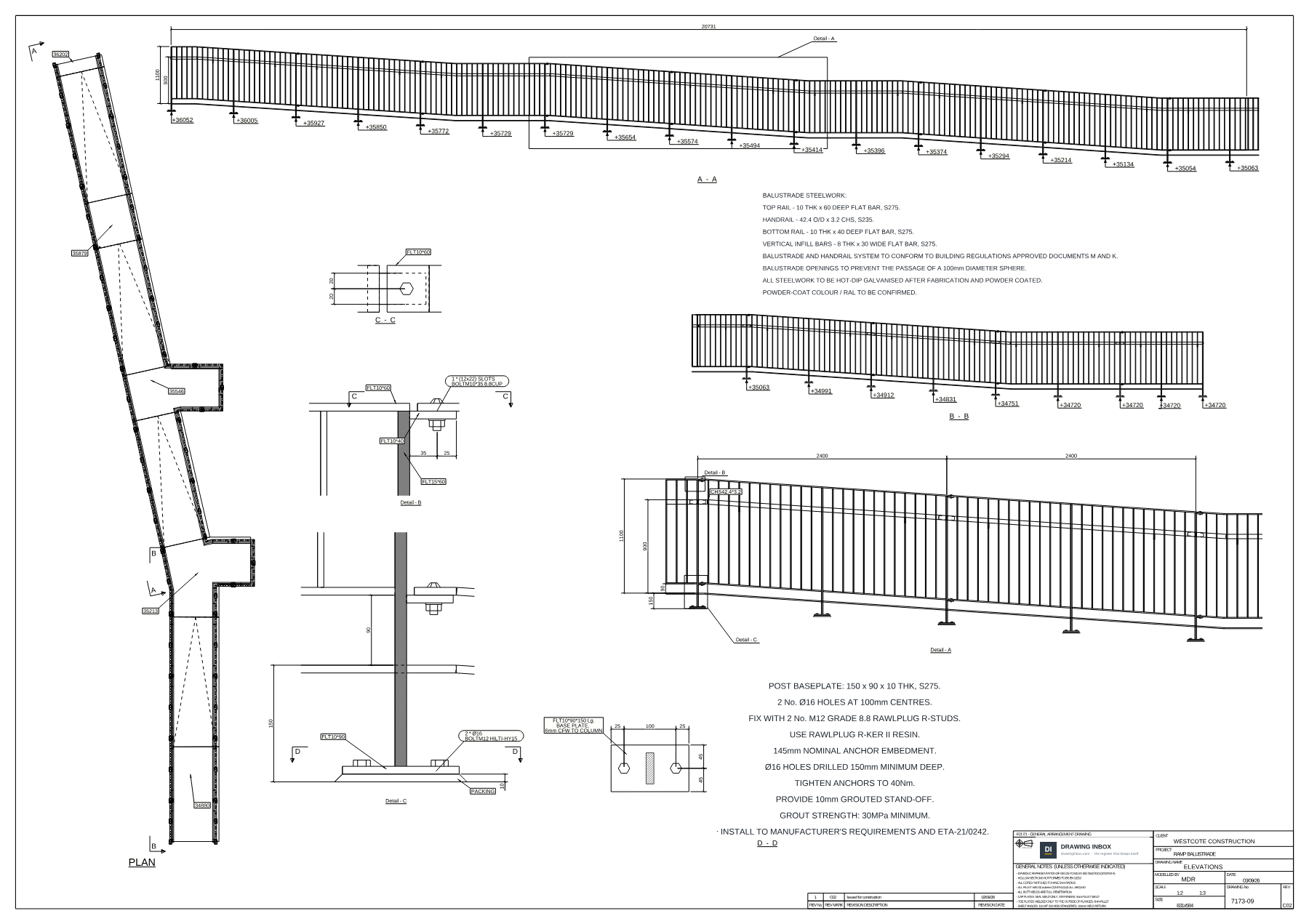
Drawing 7173-09 revision C01, the current sheet, with no stampC01 · current

Nothing yet — C01 has not landed.

What the site phones see

Every phone on your team updates itself. The alert is optional.

Outcomes

The drawing problems it stops

Outcome 01

Keep site on the current revision

“The rev went out Thursday. He’s still building off the one on his phone.”

  • Your site team gets in with their own mobile number. No links to lose, no accounts to manage.
  • An old revision opened from Drawing Inbox arrives stamped SUPERSEDED, naming what replaced it.
  • A PDF already forwarded is a separate copy and can’t update itself. The app is the copy that stays right.
7173 Ramp BalustradeCURRENT SET
7173-09 ElevationsC02
7173-11 Rest landingsC01
7173-14 3D viewC01
MODEL Ramp balustradeIFC
DIDrawings updated — 7173 · Ramp balustrade · Westcote Construction7173-09 is now rev C02 (was C01)

Outcome 02

Stop rebuilding the register by hand

“Forty sheets landed. Someone lost the afternoon typing them into a spreadsheet.”

  • Drop the whole issue on the office PC.
  • Every page read — number, rev, title and job off the title block.
  • Clear pages file themselves. Only an unclear one asks.
Register · job 71735 files dropped
7173-09ElevationsC02
7173-09ElevationsC01 superseded
7173-11Rest landingsC01
7173-143D viewC01
MODELRamp balustrade · IFCC01

Nothing here was typed.

Outcome 03

Prove what was issued, and when

“Six months on: we never had C02.”

  • Every revision kept, with the date it landed and what it replaced.
  • Register as CSV. The set as a ZIP.
  • Lay C01 over C02 on screen and see what moved.
7173-09 · revision historyCSV
4 SepC02Current
2 SepC01Superseded
Real jobs

Three jobs we detailed. Names off, nothing else touched.

How it works

Four stages. You only touch the second one.

  1. 01

    The approved issue arrives

    Email, portal, memory stick — approval stays wherever it happens now.

  2. 02

    Drop it on the office PC

    Every page is read — number, revision, title and job off the title block. Clear pages file themselves, into a new job or the one they belong to. Only an unclear page waits for you.

  3. 03

    Revisions manage themselves

    A newer revision takes over. The old one goes into history and comes out stamped SUPERSEDED in red — in the office, on site and in the export. An older or duplicate one never replaces the current.

  4. 04

    Site apps get the current set

    Every phone on your team updates itself and is told the moment something changes. No links, no logins, no chasing.

Office and site

One sign-in, in the office. Your team on their phones.

The office

  • The register: every drawing, its current rev, its files.
  • Full history — what replaced what, and when.
  • Add your team by mobile number. Remove anyone any time.
  • The register as an Excel workbook or CSV; the set as a ZIP.
Their own mobile number

Your site team

  • The current drawings, on the phone already in the pocket.
  • Updates itself, and tells them the moment a revision lands.
  • Face ID or fingerprint after the first sign-in.
  • No signal? It keeps what it has and shows when it last updated.
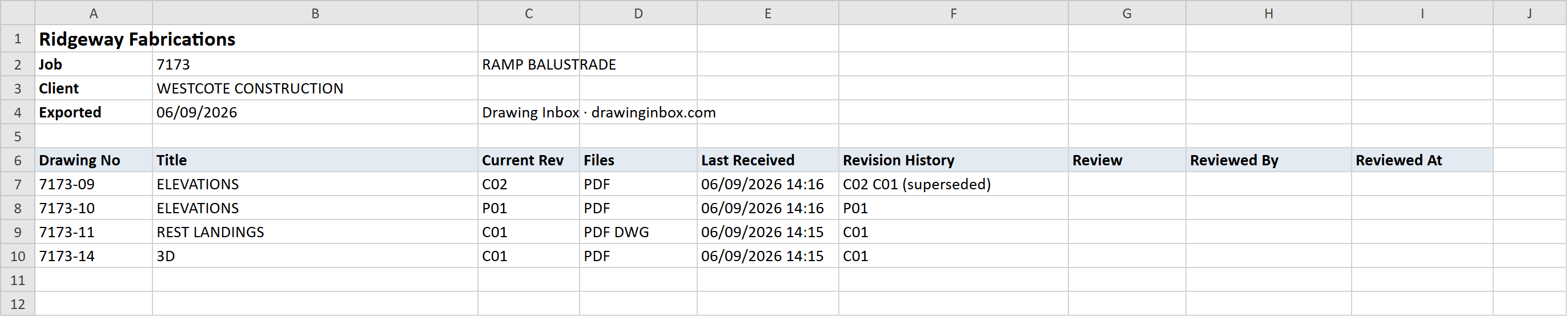
The 7173 drawing register exported to Excel: every drawing, its current revision, its files, and C01 marked superseded
The register, exported. One click on the job page gives you the workbook your QA file wants: every drawing, its current rev, its files, what replaced what.Open the sample workbook
The model · IFC

The model, in a browser, with the marks on it

The same viewer as the app, on three real IFCs. Drag it round, click a piece, or type a mark off the delivery ticket — SP12 — and watch it light up.

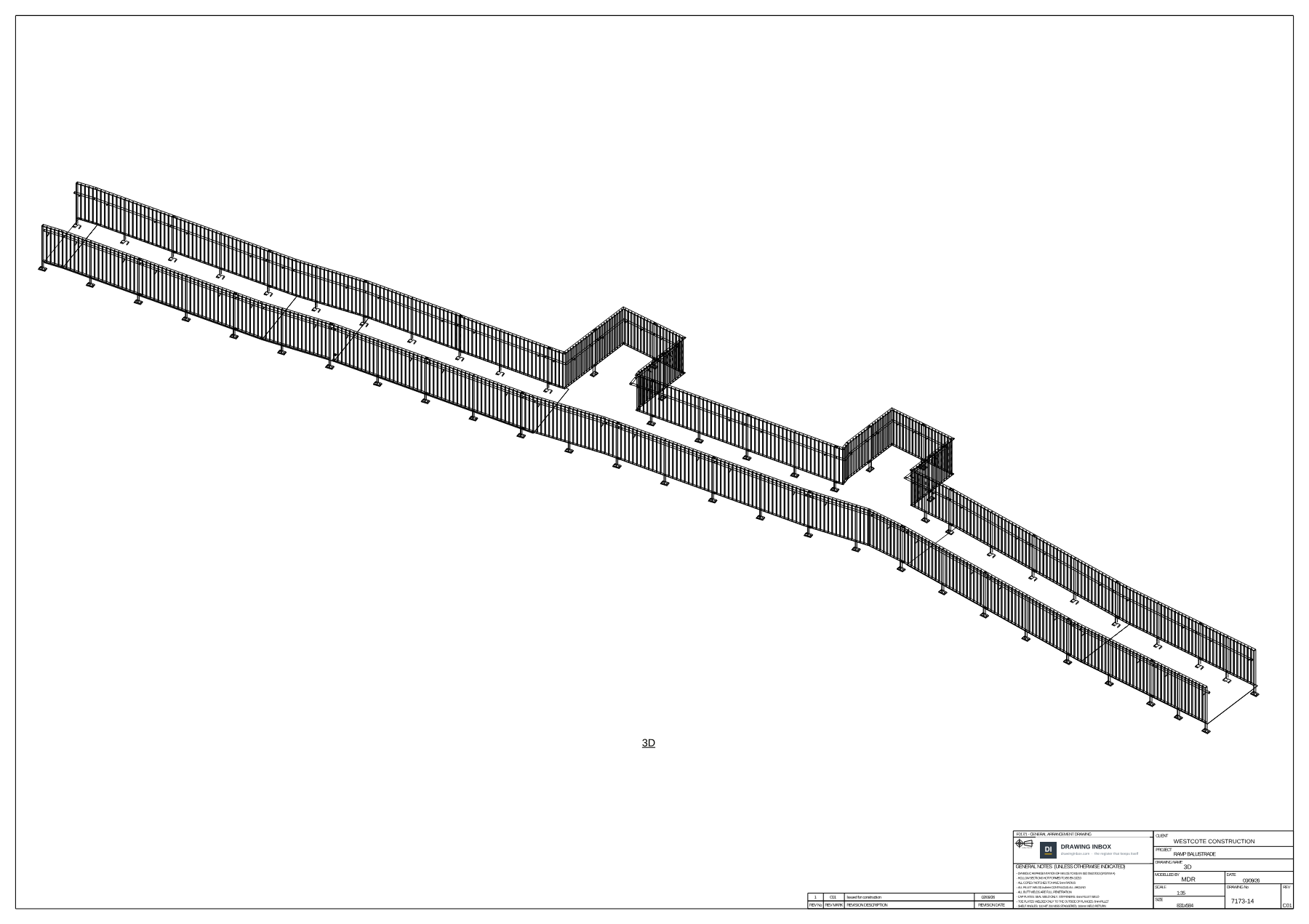
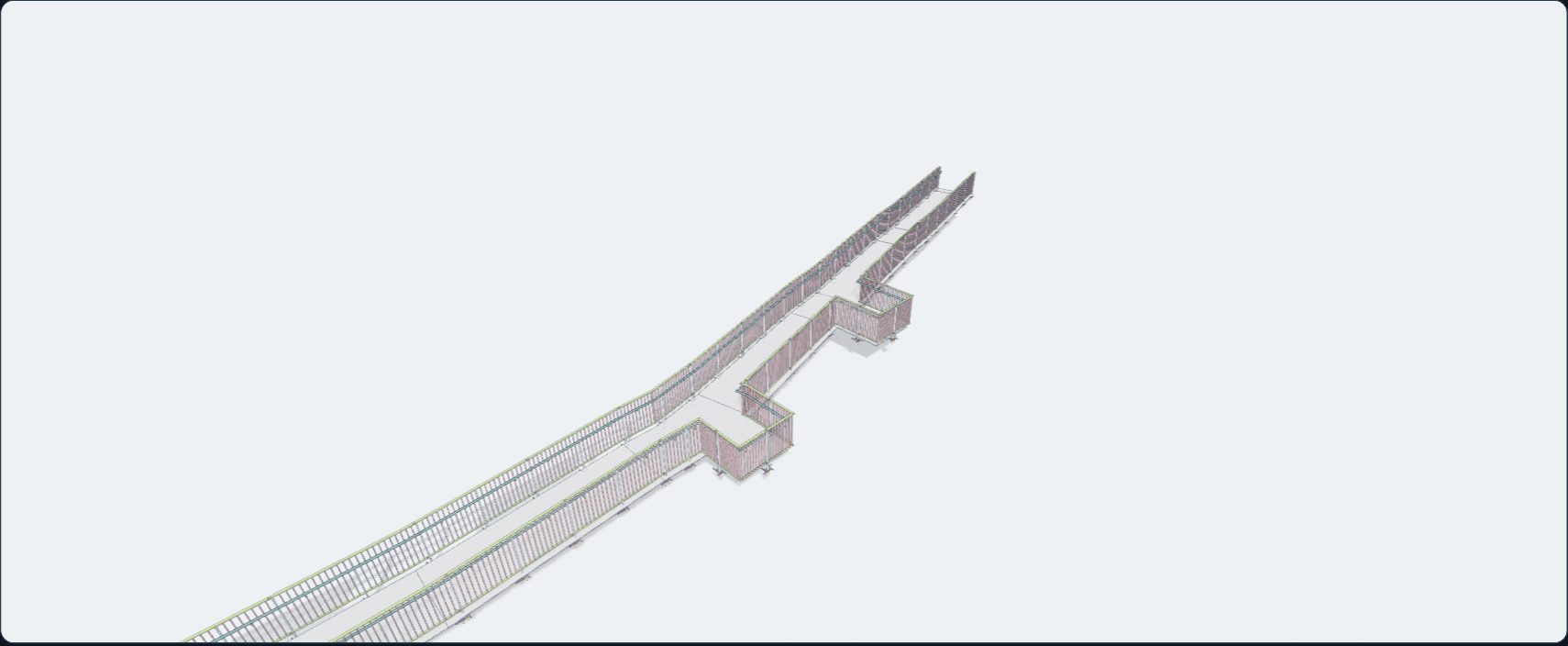
A long galvanised ramp balustrade with posts, top rail and vertical infill bars, in 3D

Interactive 3D is unavailable in this browser. View the model preview.

Job 7173 · ramp balustrade · the real IFC, in the real viewer

Exporting from Tekla? Use the steel-fabrication view property sets so the marks come across.

In the box

Six things it does, properly

Not a construction-management system. One painful job, done well.

The register keeps itself

Drop a pack in; every page is read off the sheet. Clear pages file themselves — only an unclear one waits for you.

Superseded stamping

Every revision kept. A replaced one comes out stamped in red — in the office, on site and in the export.

Site apps update themselves

Your team's phones receive the current set on their own and are told the moment it changes: “New job: 7103”, or “7173-09 is now rev C02”.

PDF, DWG, DXF and IFC

The CAD file and the model sit on the drawing they belong to — and any of them is easy to forward from the app when someone outside needs it.

The model, in a browser

Click a piece for its section. Type a mark off the delivery ticket and it lights up.

Excel, CSV, ZIP, everything out

The register as an Excel workbook or CSV, the set as a ZIP. Your drawings stay yours.

Who built it

Built by people who issue steelwork drawings every day

Drawing Inbox was created inside a working UK steel-detailing office because drawing registers, email chains and old attachments on phones create unnecessary work and risk. It is built around the way fabrication drawings actually move — from the detailing office to the fabricator and onto site.

Every sheet and model on this page is from a job we detailed, with the names taken off.

Where it stands today
Who it is for
Fabricators and detailing offices that issue drawings, and the site teams who build from them.
Where it runs
One server in Helsinki, in the EU, backed up nightly.
What it costs
£49 per company per month, plus VAT. Cancel any month.
No customer quotes yet.The first pilots are being set up. When one has run a job through it, their words go here — not ours.
Pricing

£49 per company, per month

Flat. The office and the whole site team. Nothing to count per head.

£49per company, per month

PLUS VAT · CANCEL ANY MONTH · NO CONTRACT

  • Unlimited office users and site team members
  • Unlimited jobs and registered drawings
  • 20 GB included storage
  • Assisted title-block reads, as many as the month needs
  • PDF, DWG, DXF and IFC support
  • Revision history, site apps and alerts
  • Monthly cancellation
  • Personal first-job onboarding
Subscribe

Login details by email the moment the payment is confirmed. Then add your team by mobile number.

20 GB is a lot of drawings

A full GA set with its DWGs and model is usually well under 100 MB — a couple of hundred live jobs at once. Models are compressed on arrival; superseded model files drop off after four months. Drawings are never removed.

Assisted reads are a footnote

Most sheets never need one: the reader reads the title block itself. An assisted read is used only for the odd sheet it cannot settle, and they are part of the subscription, not a meter.

No seats, on purpose

The point is everyone on site being on the same drawing. Charging per head makes you ration that.

Straight answers

The questions fabricators actually ask

Including the ones where the honest answer is “it can’t”.

How does my site team get in?

You add their mobile numbers on the Team page — type them, paste a list or drop in a CSV. Each person installs the app, enters their number and gets a code by text. After that the phone can unlock with Face ID or a fingerprint. A number you have not added is refused, so nobody outside your team can get in. Office colleagues are added by work email and get a temporary password to sign in with.

What happens when we subscribe?

Subscribe takes you to Stripe. Your company name, billing details and email go in once, there. The moment the payment is confirmed, your login details are emailed to that address: your email is your username, with a temporary password that you replace with your own the first time in. Then you add your site team by their mobile numbers. We see every new company and can switch one off, but nothing waits on us.

What happens to old revisions?

They are kept, not deleted. When a newer revision is filed, the register marks it current and moves the old one into history with a note of what replaced it. Opened afterwards — in the office, on a site phone, or inside the ZIP export — the old sheet carries a red SUPERSEDED stamp across every page naming the replacing revision and the date it landed. The stored original is never altered.

Can a PDF we already downloaded update itself?

No — and no software can do that. Once a file has been saved to a phone, forwarded or printed, it is a separate copy and cannot be stamped, changed or withdrawn afterwards. What Drawing Inbox does is keep every phone on your team on the current set, tell site the moment a revision lands, and stamp the old sheet whenever it is opened or exported from Drawing Inbox itself.

What if the wrong revision is dropped in?

An older revision, or a file already on the register, never replaces the current one. It is filed into history as it stands, the current revision is left exactly where it was, and the office is told why. A page whose number, revision or job cannot be read waits for a person — nothing is guessed.

What happens with no mobile signal?

Drawings already opened on that phone stay readable, and the phone shows when it last heard from the office. A revision filed while a phone has no signal reaches it when the signal comes back — nothing can deliver a drawing to a device that is not connected, so we would rather say so than dress it up.

Does the office PC have to stay on?

No. The office PC only has to be on while somebody is dropping drawings in. From that moment the server holds the register and keeps every phone on your team up to date, whether the office PC is on or off.

Can I forward a drawing to someone outside the team?

Yes, from the app: it hands the actual file — the PDF or the DWG — to whatever your phone uses to share. It is a copy, like any file you send, and it does not update itself. Drawing Inbox never sends links to drawings.

What files are supported?

PDF drawings, DWG and DXF, and IFC models. PDFs open in the browser on any phone, IFC opens in the 3D viewer, and DWG and DXF download or forward as the real file. Models are compressed at rest, so an IFC takes far less of your storage than it does on your server.

How is our data kept separate from other companies?

Every job, drawing and file belongs to one company, and every request is checked against the company the signed-in person belongs to. A site worker can only read; they cannot file, rename or delete. Drawings travel over HTTPS and are held on servers in the EU.

What is the assisted read?

The reader reads the title block itself, and on drawings from Tekla, AutoCAD or Revit that settles nearly every sheet. The odd sheet it cannot settle gets an assisted read of its title block, through a third-party reading service, Anthropic, and that data is not used to train models. You see what it read before anything files. DWG, DXF and IFC are never sent. They are part of the subscription; there is no count to watch.

What if someone leaves?

Remove them on the Teams page. Every phone they signed in on stops receiving anything the same second — even one that unlocks with Face ID, because the server refuses it. A new phone always has to verify by text first.

Which phones does it run on?

iPhone and Android. Until the App Store and Google Play listings are live, open app.drawinginbox.com on the phone and add it to the home screen: it runs as an app, with alerts on Android and on iPhones running iOS 16.4 or later. Signing in works the same way either way.

What happens after we cancel?

Cancel any month, with effect from the end of the paid period. You then have 30 days to export everything — the register as CSV and each job as a ZIP — after which it is deleted, as the privacy policy sets out.

Does Drawing Inbox replace our approval process?

No. Approval carries on wherever it happens today — the engineer, the client, the main contractor's portal. Drawing Inbox starts once the approved drawing lands, and keeps everyone building from the one that won. The register is an organisational aid; the issued drawing is still the drawing.

What if we go over the storage?

Filing carries on. Past 20 GB the box says so plainly and nothing is lost. If you are regularly over, we will talk about it.
How your drawings are held

  • Hosted in the EU — Helsinki, Finland.
  • Backed up nightly, with off-site copies.
  • Each company’s data is separate, and checked on every request.
  • Everything travels encrypted over HTTPS.
  • Only mobile numbers your office adds can sign in; remove anyone at once.
  • Export as CSV and ZIP whenever you want; deletion on request.
  • Assisted title-block reading via Anthropic’s service — not used to train models.

The detail is in the privacy policy and the terms.